Install it. Use it like a native app.
No browser tab needed every time you log in.
Don't see the install icon? No worries — here's how:
Optimized for what matters on the go.
On mobile, you have instant access to: Properties, Jobs, Estimates, and Staff — everything you need in the field.
The full management suite (Pricing, Reports, Export, and Form Builder) is available on desktop, where it's designed to be used.
See full feature guide →Add, Edit, or Deactivate — Right From Your Phone
Manage the full property list without opening a laptop.
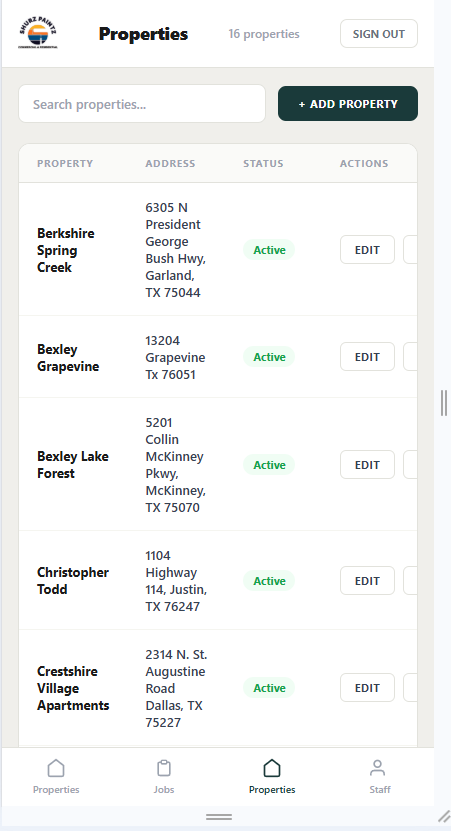
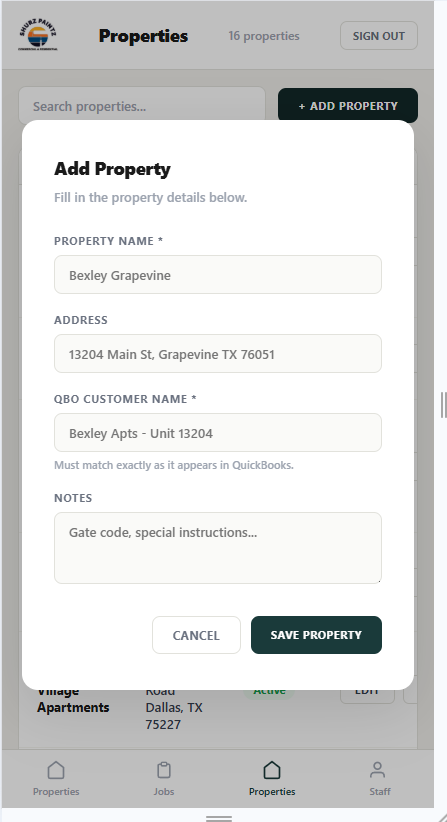
Add a property in seconds
Register a new property, unit, and QBO customer name right from the field.
Edit anytime
Update addresses, gate codes, or notes the moment something changes.
Deactivate without deleting
Retired properties stay in the record, just out of the active list.
Always up to date
Any change a supervisor makes on desktop shows up on your phone instantly.
Start a job in two taps
Pick the property and unit, and the checklist opens ready to fill out.
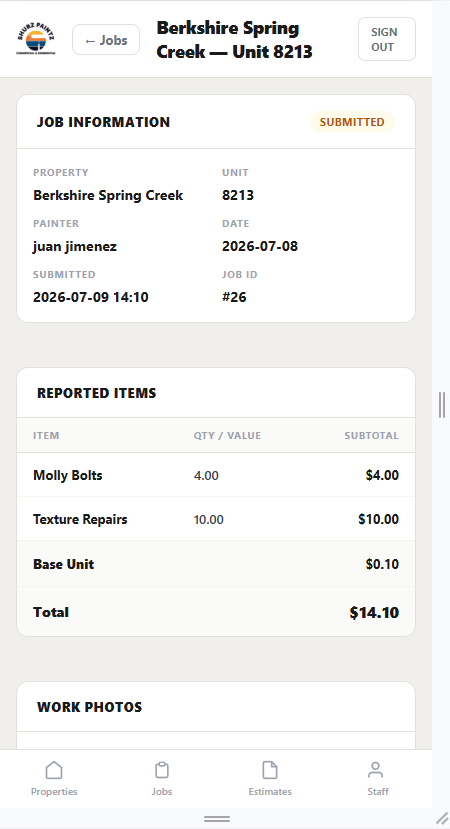
Price it once — let the system do the math
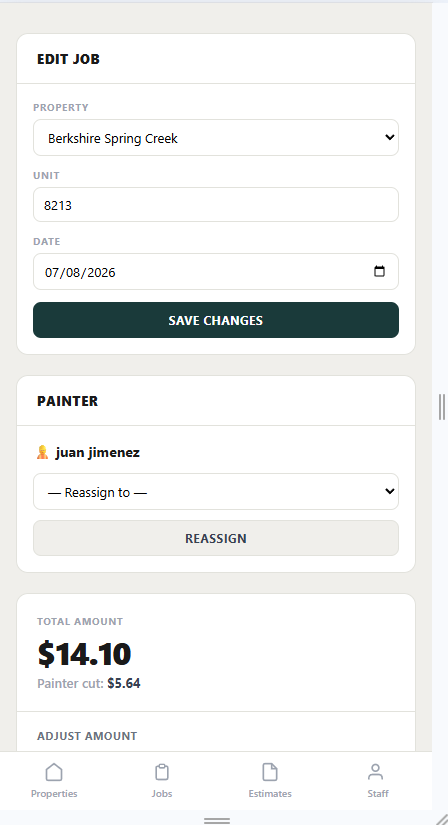
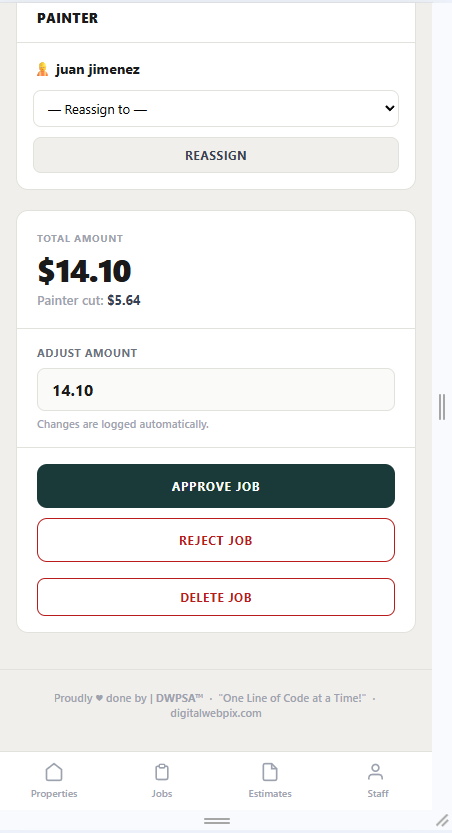
Set a base price for each item, or fine-tune it for a specific property, just once. From then on, every reported item in the field calculates itself automatically — no manual math, no guesswork on the weekly bill.
Still yours to adjust, right up to the bill
Setting a price once doesn't mean it's locked in forever. Supervisors can fine-tune any price before generating the weekly bill, so the numbers stay accurate without slowing anyone down.
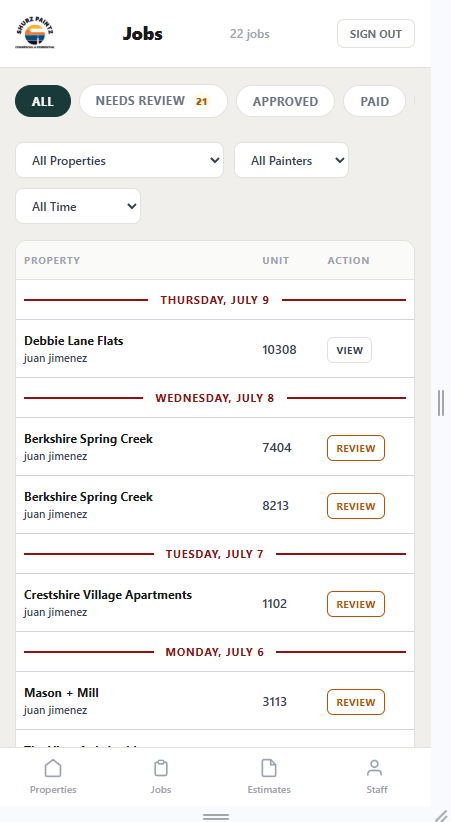
Your jobs, front and center
See every assigned job with property, unit, and status at a glance.
Start a job in two taps
Select the property and unit, hit Start Job, and the checklist opens instantly.
Nothing falls through the cracks
Each job keeps its own status — submitted, approved, rejected — so you always know where things stand.
Quote it from the field
The same guided flow as desktop, built to fit in one hand.
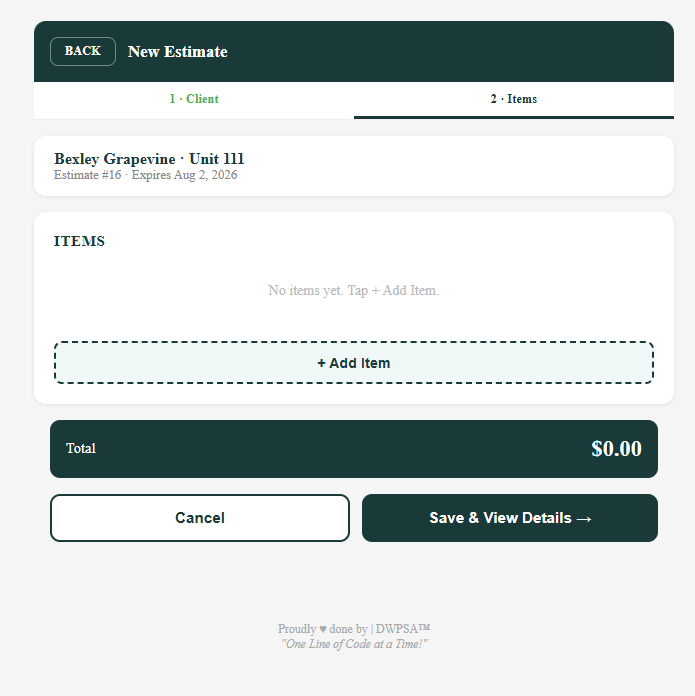
Quote from the field
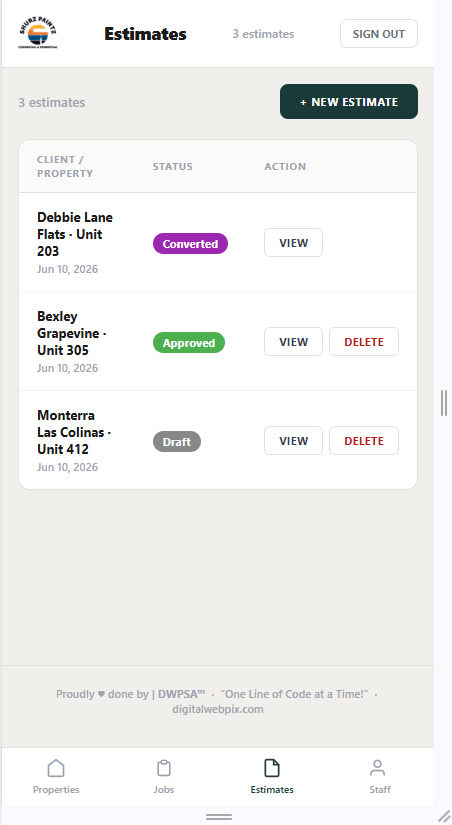
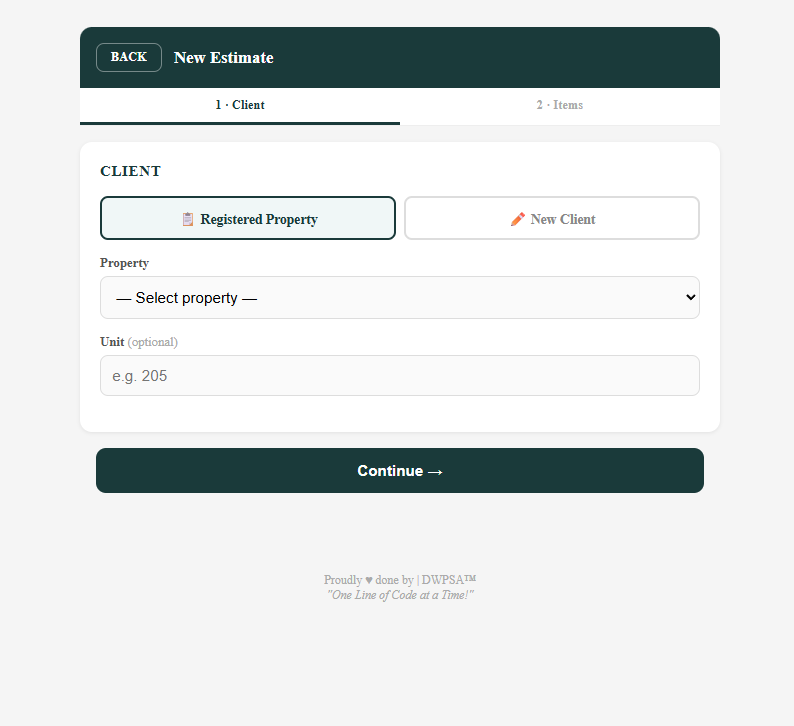
Build an estimate on-site, right after walking the unit.
Two steps, zero confusion
Pick the client, add the items, done — the same guided flow as desktop.
Photos attached automatically
Every item photo stays organized under its estimate, ready for the office to review.
Know who's on the crew
A quick directory, scoped to what each role is meant to see.
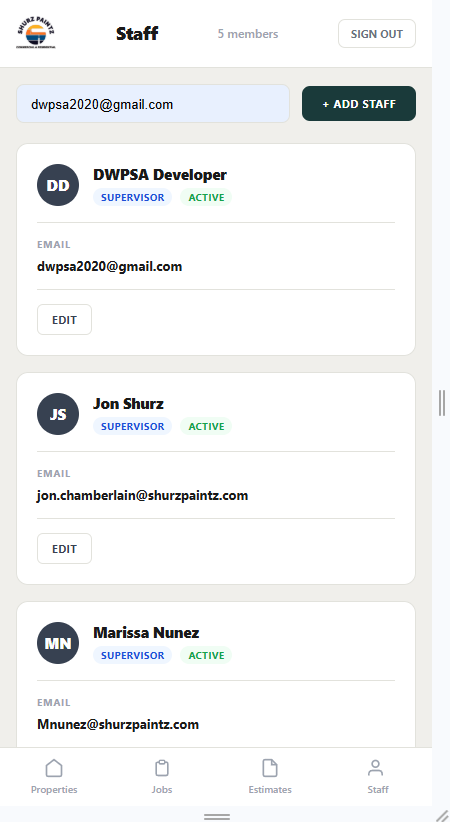
Know who's on the crew
A quick directory of active painters and their roles.
See what you're cleared to see
Painters only see their own assignments — pricing and financials stay on desktop, where they belong.